

A brand-new feature known as PokéStop scanning was recently announced for Pokémon GO. Read on below to learn more:
Power up PokéStops to receive better rewards and create new AR experiences
Trainers,
We’re excited to announce Powered-Up PokéStops, a feature that will make new use of the AR Mapping tasks we introduced last year. Soon, you’ll be able to work with your fellow Trainers to complete AR Mapping tasks and create exciting new AR experiences for Trainers worldwide, simply by using your smart device to scan real-world PokéStop locations.
You’ll be able to power up certain PokéStops and Gyms for a limited period of time by completing AR Mapping tasks. Powered-Up PokéStops will look different on the map, and any Trainer who spins one will earn extra rewards. As more Trainers level 20 and above perform AR scans of a PokéStop, the rewards for spinning it will increase, and the PokéStop will be powered up for a longer period of time. Powered-Up PokéStops will have three visually distinct levels, and they’ll level up as more Trainers work together to scan the PokéStop. The scanning requirements to achieve each level are as follows.
- Level 1: Five scans
- Level 2: 10 scans
- Level 3: 25 scans
To scan a PokéStop, go to the PokéStop or Gym’s details page and tap the three dots in the upper right. You must be level 20 or above to complete AR Mapping tasks.
- Tap SCAN POKÉSTOP.
- Opt in to the feature via the on-screen prompts if it’s your first time performing a scan.
- Tap the record button to start scanning. Keep the subject within the frame, and slowly walk around the subject if possible.
- Tap Upload Later or Upload Now to upload your scan.
Learn more about Powered-Up PokéStops, including the rewards they offer and the duration of time they’ll remain powered up at each level, in this help center article.
Curious about how to submit PokéStop AR scans ? We’ve put together a tutorial video that can be found here.
Please be aware of your surroundings and follow guidelines from local health authorities when playing Pokémon GO. Upcoming events are subject to change. Be sure to follow us on social media, opt in to receiving push notifications, and subscribe to our emails to stay updated. For the latest on in-game events and feature updates, be sure to check this help center article.
—The Pokémon GO team
Scanning a PokéStop
Learn how to scan a PokéStop in Pokémon GO! You may have noticed Field Research that asks you to scan the subject of a PokéStop or Gym. PokéStop Scanning is an opt-in feature that lets qualified Pokémon GO Trainers record videos of PokéStops and Gyms.
Learn more on the blog: https://pokemongolive.com/post/power-…
Source: Official Pokémon GO blog
Scanning a PokéStop

Supported Devices
-
iOS: PokéStop Scanning is available on iPhone 6s and newer devices running iOS 11+.
-
Android: PokéStop Scanning is available on devices running Android 7.0+ and can support Google Play Services for AR. Supported devices must install Google Play Services for AR from the Google Play Store. A list of supported devices can be found here.
Eligibility
To scan a PokéStop:
-
Go the PokéStop or Gym’s details page and tap the three dots in the upper right.
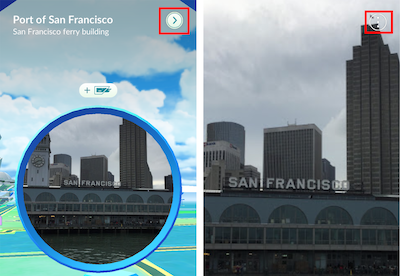
-
Tap SCAN POKESTOP.
-
Opt into the feature via the on-screen prompts if it’s your first time recording a scan.
-
Tap the record button to start scanning. Keep the object within the frame, and slowly walk around the object if possible.
-
Tap Upload Later or Upload Now to upload your PokéStop Scan.
What we’re looking for in a PokéStop Scan:
-
Ideal scanning candidates are those which you can safely walk completely around, like statues and sculptures.
-
A 20-30-second scan that keeps the object in the center of the frame and is visible from top to bottom within the frame.
-
Maintain a consistent movement speed and distance between you and the object.
-
If possible, walk a full 360 degrees around the object. If walking all the way around the object isn’t possible, 180 degrees will still work.
-
Scans taken in various environmental conditions (lighting at various times of day, different types of weather, etc.).
-
Please stay aware of your surroundings. Remember to watch where you’re moving. You can look away from the screen because keeping the PokéStop within the frame doesn’t need to be perfect, and you can submit multiple Scans of that PokéStop.
-
The PokéStop should be the main focus of scans, but it’s also helpful to have some of the surrounding area included, especially for smaller PokéStop. Specifically:
-
Point your camera towards the PokéStop while moving around it or near it. Consider moving in an orbit around the PokéStop. The orbit can be circular, navigating around the accessible surfaces of the PokéStop, or it can be more broad, where you approach the PokéStop from a distance and scan it as you approach.
-
Multiple PokéStop Scans of the same PokéStop help us build better AR maps, especially when taken from different viewpoints, at different times of day, and with different lighting conditions. More PokéStop Scanning coverage correlates with more places and times of day that AR features can work robustly.
-
PokéStop Scans of longer durations are typically easier to combine than many short PokéStop Scans.
-
Move along public paths or walkways near the PokéStop. While the main focus of the PokéStop Scan should be the PokéStop itself, please stay on public paths or walkways near the PokéStop or surrounding area.
-
-
Flat PokéStops (murals; memorial plaques; signage; etc.): Face the PokéStop and walk laterally from one side to the other. If the PokéStop itself is small, like a memorial plaque on a bench, please scan the entire bench versus the memorial plaque only.
-
Medium PokéStops (statues; playground structures; informational signs; etc.): Walk 360 degrees around the PokéStop, if possible.
- Large PokéStops (historical building; athletic fields; etc.): While staying within range of the PokéStop, move laterally across the faces of the structure or building. Before starting your next PokéStop Scan of the same large PokéStop, take two steps back to overlap your new PokéStop Scan with your previous one. If the PokéStop is a park or athletic field, try to focus on free-standing elements that are most representative of that PokéStop. If you are able to continue PokéStop Scanning further, you can connect free-standing elements by getting two or more of them filmed in the same PokéStop Scan.
PokéStop Scanning FAQs
-
Standing stationary and making a circular hand motion is not as useful as PokéStop Scans made while walking 10 or more steps from your starting position.
-
PokéStop Scans in extreme darkness may not include enough usable information.
-
Blurry PokéStop Scans. This can sometimes be improved by wiping the lens, tapping the PokéStop on-screen before scanning, or moving more slowly.
-
Additionally, while it’s better to upload PokéStop Scans without obstructions or people between the you and the PokéStop, we understand that this is sometimes unavoidable. We automatically check every PokéStop Scan to blur faces, license plates, and other identifying information.
Source: Official Pokémon GO support page
 Pokémon Blog